
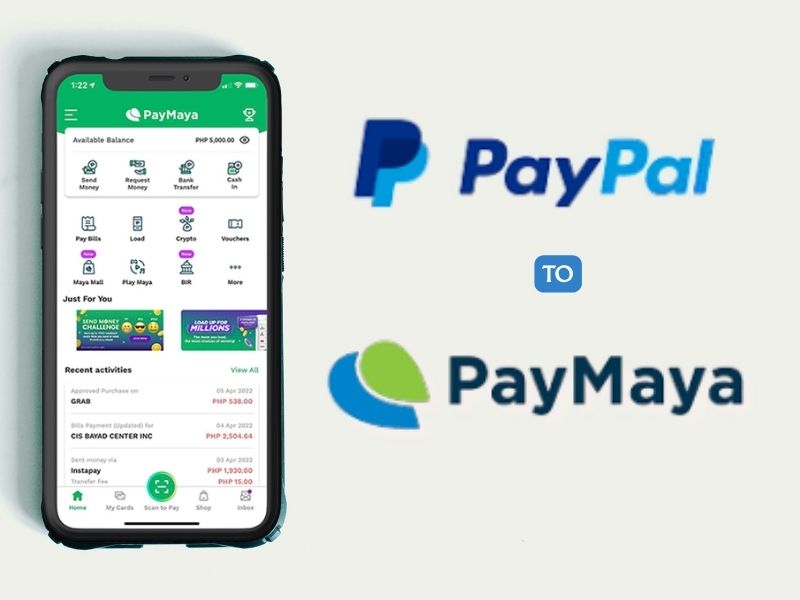
In the Philippines, PayPal is widely used by freelancers, e-commerce businesses, and international remittance recipients to receive salaries or payments from abroad. And you can also easily send money from PayPal to PayMaya. Paymaya, or Maya, is used for everyday transactions such as paying bills, purchasing phone credit, paying QR codes at physical merchants, and even saving with high interest rates.
However, before you can transfer funds from PayPal to PayMaya, you must first ensure that both accounts are linked. Make sure you have at least ₱100 in your PayMaya wallet. In this article, we’ll provide a step-by-step guide.
How to link PayPal with PayMaya
Before you can transfer funds from PayPal to PayMaya, you must first ensure that both accounts are linked. Here’s how to link the two accounts:
First, log in to your PayPal account. Click “Wallet” in the top menu (on mobile devices, you can see it by tapping the menu) and click “Link a credit card.”
Enter your PayMaya virtual card number, expiration date, security code (CVV2), and billing address. The card type will be automatically selected based on your card number.
Please double check that your billing address is the same as the address registered on your PayMaya account, otherwise your card will be declined.
Then, to find your PayMaya card, tap “Cards” and select “Online Payment Card Number.” There, you’ll see our PayMaya virtual card, complete with the 16-digit card number, expiration date, and CVV2 code.
Please note that you can only get your own PayMaya virtual card if your balance is at least ₱100. Then, check that all the information is correct, then click “Link Card.”
Finally, you’ve successfully linked your PayPal card to your PayPal account. Now you can start transferring your PayPal funds to your PayMaya wallet.
How to Transfer Money to PayMaya
Once your PayPal and PayMaya accounts are connected, you can start transferring money from PayPal to PayMaya. However, you can’t transfer money from PayMaya to PayPal yet because adding funds from a debit/credit card isn’t yet possible.
Here are the steps:
- First, log in to your PayPal account and click “Transfer Funds.” Then, select the PayMaya virtual card you added in the previous step. Make sure you’ve selected the correct card and click “Next.”
- Next step, Enter the amount you want to transfer and the minimum amount is $5.01. Click “Next”
- Review your transfer request. Note the exchange rate and the ₱50 fee that will be deducted from the withdrawal amount. Transfers are free for amounts over ₱7,000. Click “Transfer (amount) Now” to proceed with your funds transfer request.
- Congratulations! You’ve successfully transferred money from PayPal to PayMaya. You can open the PayMaya app to check if the funds have been credited to your wallet. Click “Recent Activity” on the home screen to find it.
So, you’ve just learned how to transfer money from PayPal to PayMaya. If you encounter any issues or problems with PayMaya (for example, if you haven’t received your money), don’t hesitate to call their toll-free hotline at 1800-1084-57788 or email support@paymaya.com. Hope this help!