
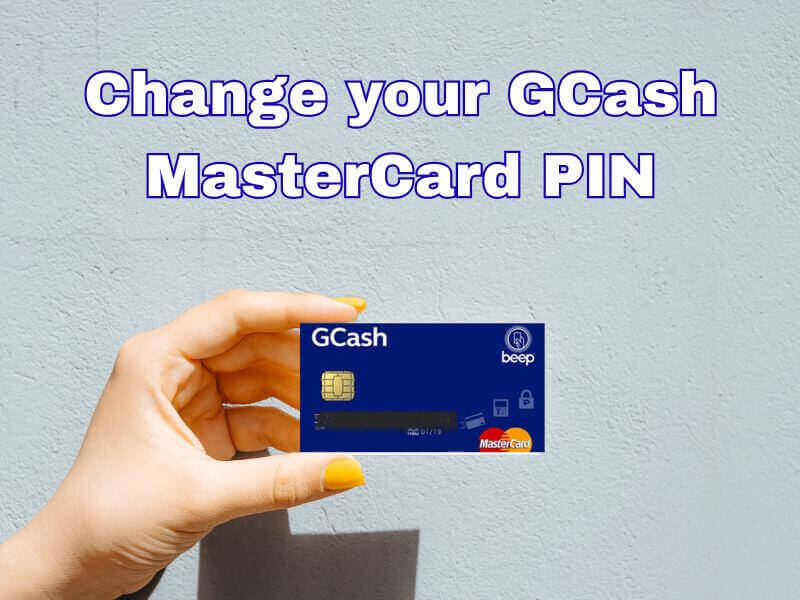
The GCash MasterCard (or GCash Card) is a prepaid debit card directly linked to your GCash balance. You can use this card to withdraw cash at ATMs and make purchases in stores. Like other debit cards, the GCash MasterCard uses a PIN for security.
So, why do you need to change your PIN regularly? Since you frequently make transactions at ATMs and stores, changing your PIN is highly recommended to prevent unauthorized access and protect your balance from theft if your physical card is lost or stolen. Keep in mind that the 6-digit ATM access code differs from the 4-digit MPIN for app logins.
This article will discuss how to change or update your GCash MasterCard PIN.
How to Change or Update Your GCash Card PIN
You can change/reset your 6-digit GCash PIN directly through the GCash app (this action is different from the 4-digit MPIN you use to log in to the app).
- Here are the quick steps:
- Open and log in to the GCash app by entering your 4-digit MPIN.
- Then tap the Cards menu on the dashboard via your profile.
- Select the GCash Card or Mastercard account you want to update.
- Click the Reset PIN option.
- Then create a new PIN by entering your chosen 6-digit PIN.
- Tap Next and confirm. To complete the step, enter the OTP code (if requested) until a notification appears stating that your PIN update was successful.
How to Lock Your GCash MasterCard
If you are not going to use your GCash MasterCard for a long period of time, you can choose the option to temporarily lock your GCash card and only unlock it when you are going to make a payment or purchase something using the card.
You can also do this directly through the GCash app. Here are the steps:
- Log in to your GCash app using your 4-digit MPIN.
- Then, click the menu on the main page (dashboard) and tap the Cards icon. (If it’s not immediately visible, tap View All first, then select Cards.)
- Tap the image of the GCash MasterCard you want to lock.
- Then, tap the Lock Card option.
- Your card will appear grayed out in the app. You will also receive a confirmation SMS from GCash that the card has been successfully temporarily deactivated.
If you want to use your card again, or if your lost card has been returned, you can unlock it in much the same way:
- Re-enter the Cards menu in the GCash app.
- Select your locked card, then tap Unlock Card.
- Enter the 6-digit authorization code (OTP) sent to your mobile number, then tap Submit.
- Your card will immediately be reactivated.
That’s a brief tutorial on how to reset or update your GCash Mastercard PIN. You can also temporarily lock your card to avoid unexpected expenses while shopping. This way, you can only use it when needed. Or, if you lose your card, it can prevent misuse by unscrupulous individuals. If you encounter any other issues, please contact your GCash customer service. Thank you, and we hope this article was helpful!